
Help Support
Users can access the Q chatbot on https://www.qnect.com/qnect-autodesk-revit/support to ask how to resolve issues.
https://www.chatbase.co/FBvvagXrPa33qQBuLQTvv/help

Additional Help
- Select Settings and explain what the first dialog box means. This dialog only comes up now when the Force field parameters is checked.
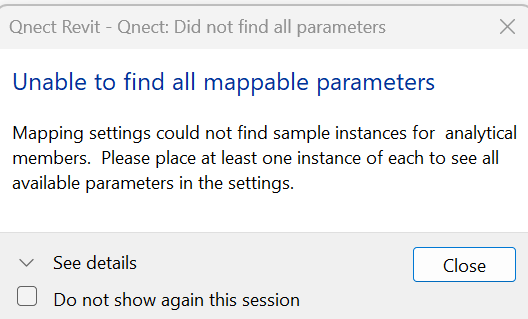
Mapping Forces
- Users can map either analytical or physical parameter end forces already in the Revit model to the Qnect Analytical Properties parameters. The values entered in the Qnect Analytical Properties parameters will be exported for analysis of the joints. The Analytical Results within the Revit parameters will contain results once returned from the cloud. Users may have existing data here that co-exists with Qnect’s data. Users can always remove the Qnect parameters if desired (see Setup help above).
- Here is a free body diagram illustrating the coordinate system used for vertical shear and strong axis moment:
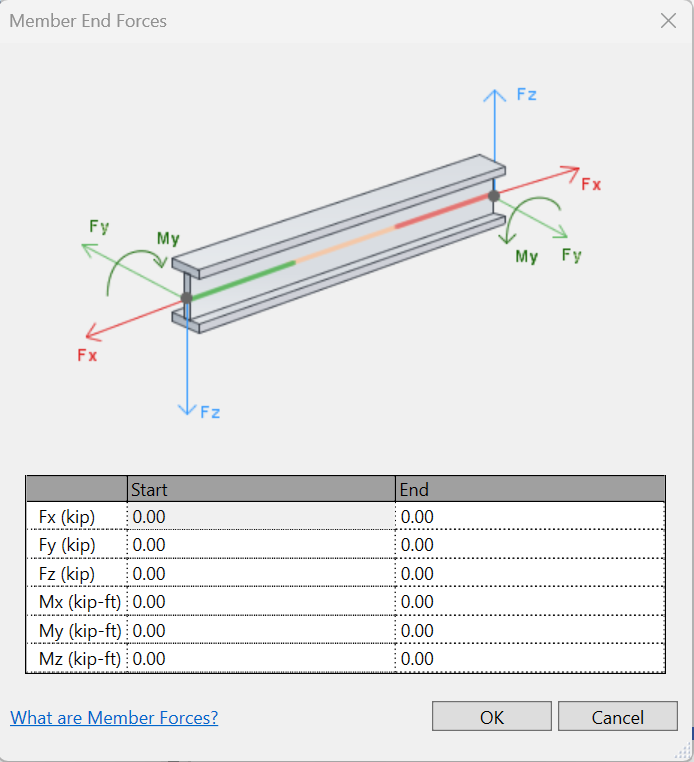
- If no forces are in the model, Qnect will use information defined in the Preferences > Forces section (see Preferences help section). The out of the box Force tables use 0.8 UDL for composite beams (ie Revit beams with shear connector values) and 0.5 ULD for non-composite beams.